Browse AP Vendors
Use the Browse AP Vendors window to locate existing or to add AP Vendors. Sort the Browse AP Vendors screen or scroll horizontally to view additional Vendors. Select  to create a new Vendor account or select the
  button to edit or review an existing account or double click to open.
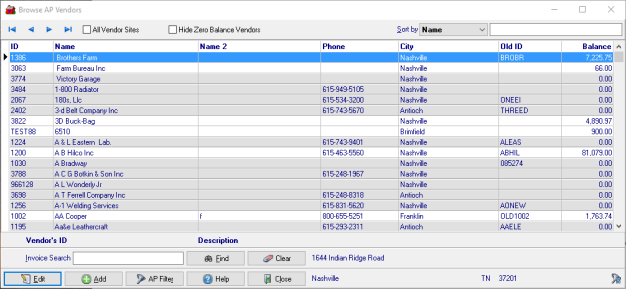

Select the additional filter All Vendor Sites to view Vendors for all Sites available in addition to the Vendors set to the Default Site that matches the Users default Site.
Use Hide Zero Balance Vendors to focus on vendors with a balance.
Indicate which vendors are set to Pay by ACH by using the ACH Vendors Only checkbox.
Limit the Vendors listed on the grid by adding an additional AP Filter. Learn more here.
Vendors with a white background indicate the Vendor has a balance.
At a Glance Information
The columns included in Browse AP Vendors are listed below.
ID- Displays the AP Vendor account ID
Name- The AP Vendor Name
Name 2 - Any additional name associated with the AP Vendor
Phone- The main phone number associated with the account.
City- The City of the billing address for the Vendor.
Old ID- Provides the ID assigned to the account from previous systems used.
Balance- The current AP balance for the account.
As Vendors are selected in the grid, the footer displays the vendor address.
Use the Invoice Search field to search the selected Vendor by Invoice number. As Vendors are selected, the Street address, City, State and Zip display in the footer.